
When you first create a WordPress site, the comment section might seem like a good idea. It’s a way for visitors to leave feedback, ask questions, or share thoughts. But after a while, you might notice something else: spam messages, unrelated comments, or just too many notifications to deal with.
The truth is, not every website needs comments. If you’re building a business site, a personal portfolio, or a landing page, the comment box can feel more like clutter than value.
Thankfully, WordPress gives you full control. You can turn off comments completely or just on certain posts or pages. Whether you want to stop future comments or clean up old ones, it only takes a few clicks.
Let’s check the ways you can disable comments in WordPress.
How to Disable Comments on Future Posts and Pages
If you want to stop comments on all new content, you can turn them off in the settings. This won’t affect any existing posts; it only works for future ones.
Steps:
- Go to your WordPress dashboard.
- Click on Settings > Discussion.
- Uncheck the box that says “Allow people to submit comments on new posts.”
- Click Save Changes at the bottom.
This will stop comments on all posts and pages you publish from now on.
How to Disable Comments on Existing Posts
If you already have some blog posts that allow comments, you need to manually turn them off for those posts. You can do it one by one, or you can do it in bulk to save time.
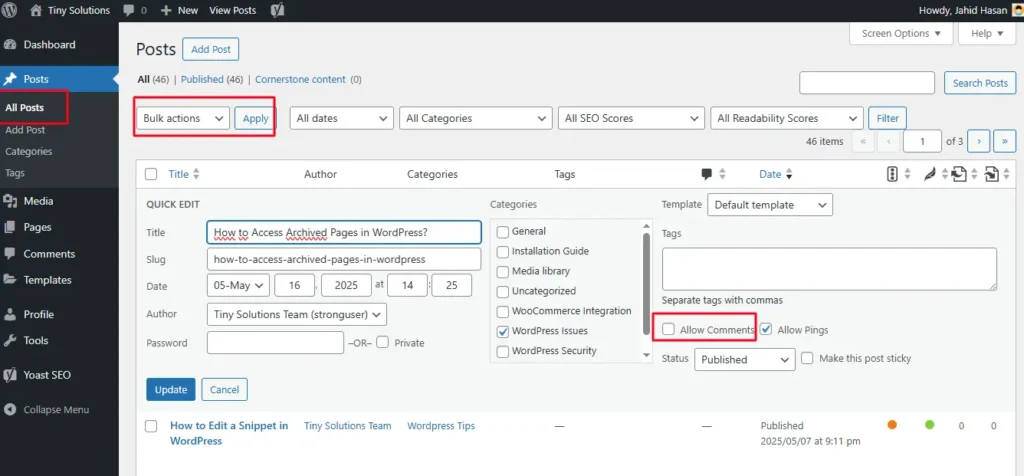
Steps:
- Go to Posts > All Posts.
- Select the posts you want to update.
- Click Bulk Actions > Edit, then click Apply.
- In the options that appear, find the Comments dropdown and select Do not allow.
- Click Update.
How to Disable Comments on Pages Only
WordPress pages often don’t need comments. You can turn off comments just for pages. Repeat this for other pages where you want to remove comments.
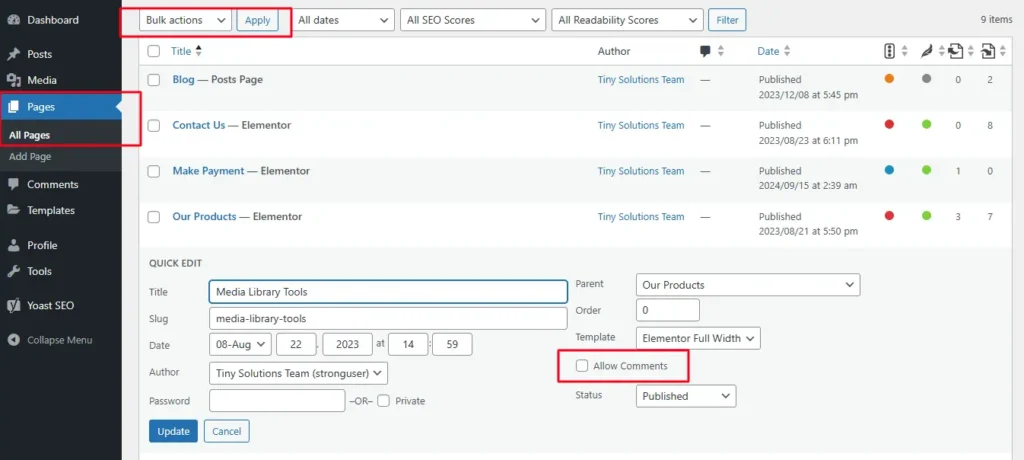
Steps:
- Go to Pages > All Pages.
- Hover over a page and click Quick Edit.
- Uncheck Allow Comments.
- Click Update.
How to Disable Comments in Your Theme (Advanced Users)
Some themes might still show comment sections even if they’re disabled. You can fix this by editing theme files.
Steps:
- Go to Appearance > Theme File Editor.
- Open single.php or page.php (depends on your theme).
- Find the line: <?php comments_template(); ?>
- Remove or comment it out by adding // before it or wrapping it with <!– –> if it’s HTML.
- Save the file.
Fields from Custom Post Types
Some custom post types may still show comment options. You’ll need to disable them manually.
Steps:
- Go to the custom post type section in your dashboard (e.g., Portfolio, Testimonials, etc.).
- Edit the individual post or do a Quick Edit.
- Uncheck Allow Comments.
- Update the post.
How to Disable WordPress Comments on an Individual Post or Page
You can stop comments on a specific post or page if needed.
Steps:
- Open the post or page you want to edit.
- In the Post settings panel, look for Discussion.
- Uncheck the Allow Comments box.
- Update the post or page.
How to Disable Comments on Media
Sometimes, images and other media files can also have comment sections.
Steps:
- Go to Media > Library.
- Click on a media file to open its Attachment page.
- Scroll down to the Discussion box.
- Uncheck Allow Comments.
- Click Update.
Conclusion
Turning off comments in WordPress is easy once you know where to look. Whether you want to stop comments on future posts, remove them from older ones, or just keep pages clean and quiet, you’re in control.
There’s no one right way. It all depends on what your site needs. Some websites work better without comments, and that’s fine.
Follow the steps that fit your situation, and your site will look cleaner, more professional, and easier to manage.
And if you ever change your mind, you can always turn comments back on with just a few clicks.
